---
title: Re-running Your Course
description: Another way to create a course in Studio is to re-run an existing course. When you re-run a course, most, but not all, of the original course content is duplicated to the new course. The original cour
---
[Skip to content](https://help.edly.io/docs/re-running-your-course-0#main-content)
English
Show submenu for translations
-1.png?width=100&height=75&name=Edly%20by%20Arbisoft%20(Red%20and%20Gray)-1.png)
Open main navigation
Close main navigation
- English
Show submenu for translations
- Visit edly.io
Visit edly.io
Hello. How can we help you?
- There are no suggestions because the search field is empty.
1. [Edly Knowledge Base](https://help.edly.io/docs?hsLang=en)
2. [Studio](https://help.edly.io/docs/studio?hsLang=en)
3. [Re-running Your Course](https://help.edly.io/docs/studio?hsLang=en#re-running-your-course)
# Re-running Your Course
## Create a New Course Run from an Existing Open edX Course
### Overview
Re-running a course allows you to create a completely new course run by duplicating the content of an existing one. When you initiate a re-run, the system copies the majority of the original structure, components, and static assets into a fresh draft shell. The original course run remains unchanged and completely independent.
Because changes made after a re-run do not sync across the two versions, ensure your original course content is as polished and complete as possible before proceeding with a duplication task.
**Tip:** Ensure you are logged into **Open edX Studio** with appropriate Admin permissions before proceeding.
### Step-by-Step Duplication Procedure
#### Locating the Source Course
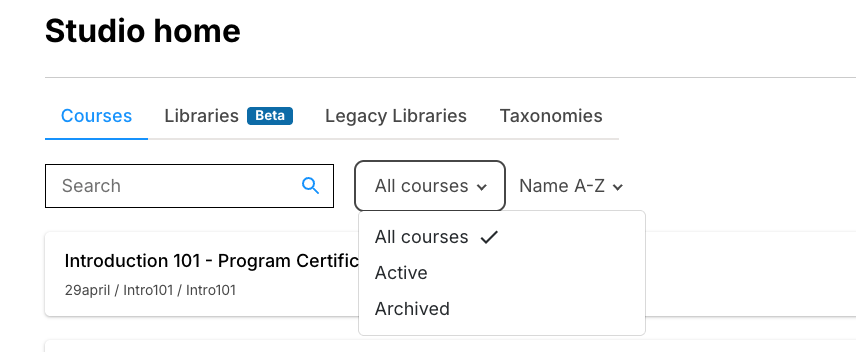
Active course runs populate on your primary Studio dashboard tab. However, if the course run you wish to duplicate has already passed its completion date, it will transition into your history files.
- **Archived Feed:** Look for the course under the **Archived Courses** tab on your main Studio dashboard.
#### Initiating the Re-run
1. Navigate to your target course row on the Studio dashboard.
2. Click the **Re-run Course** button located next to the course summary details.
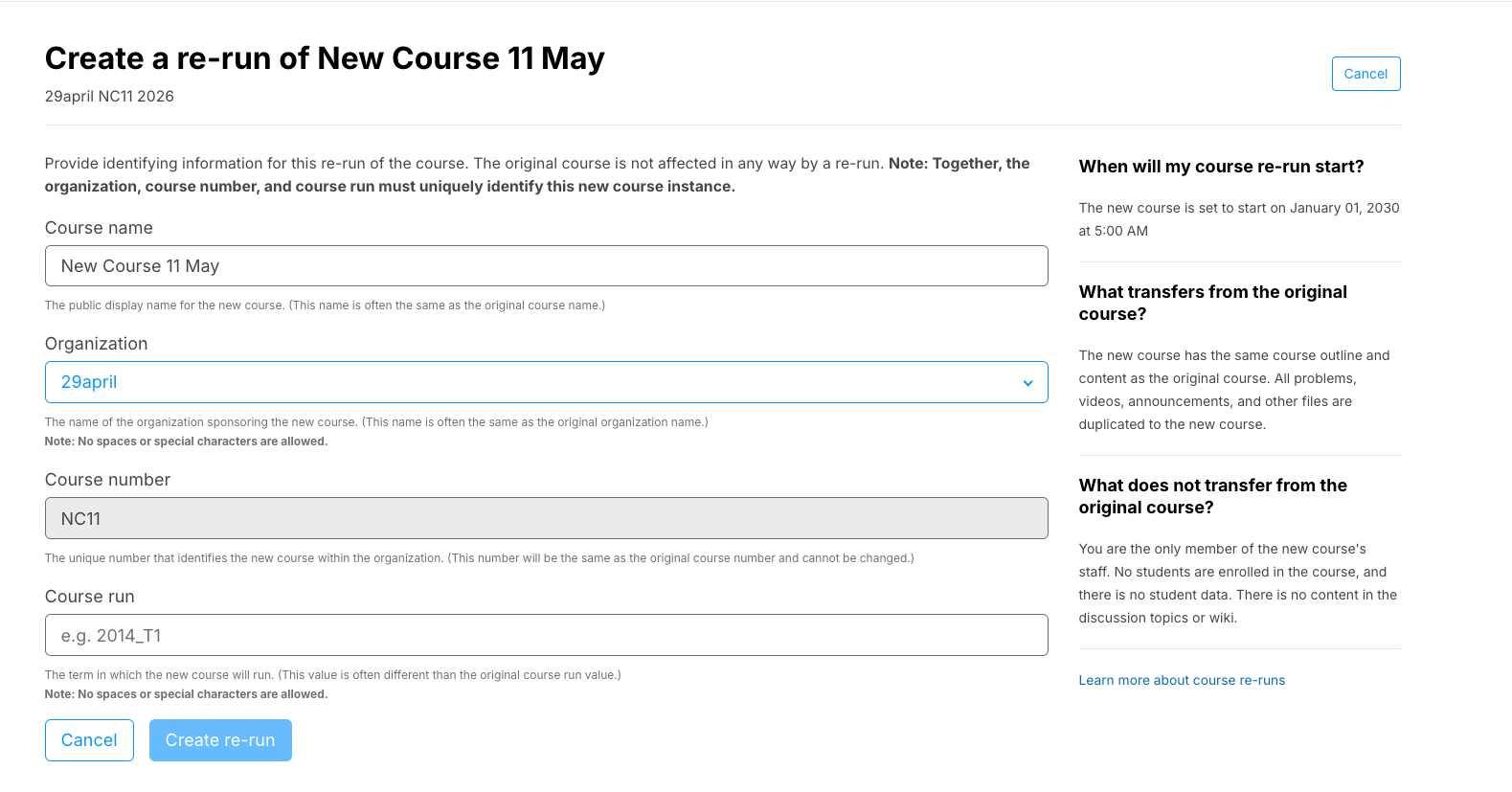
3. A configuration form will appear. Input the new backend identifiers:
- **Course Organization:** (Usually pre-filled to match your operational entity code).
- **Course Number:** Keep this consistent with the original course run.
- **Course Run:** Enter a new, unique identifier representing the upcoming term or cohort window (e.g., `2026_Q2` or `Fall_2026`).
4. Click **Create**.
The platform will process the duplication task as a background operation. Once finalized, the new course shell will appear directly at the top of your active dashboard workspace.
### Mandatory Checklist for the New Course Run
Because a re-run only copies structural skeleton details and static media assets, you **must** manually re-configure operational details and security flags before welcoming learners:
- **Update Strategic Dates:** Navigate to **Settings \> Schedule & Details** to establish your new Course Start, Course End, Enrollment Start, and Enrollment End metrics.
- **Review Outline Timelines:** Go to your **Course Outline**. Adjust individual section or subsection release parameters, and update due dates on any graded components to align with your new operational timeline.
- **Assign Course Roles:** User access controls do not carry over. Go to **Settings \> Course Team** to re-add your instructors, authors, and teaching assistants.
- **Manage Communication Channels:** Go to **Content \> Updates** to scrub or delete legacy announcements and clear out old notification alerts.
- **Re-establish Social Parameters:** If your learning path leverages user groups or cohorts, navigate to your **Instructor Dashboard** inside the LMS to define your new cohort grouping rules.
### Understanding Data Retention Rules
| **Asset Type** | **Copied During Re-run?** | **Administrative Action Required** |
| --- | --- | --- |
| **HTML Text & Video Blocks** | **Yes** | None; content copies exactly. |
| **Problem Components & Weights** | **Yes** | Review and adjust due dates. |
| **Files & Uploads Assets** | **Yes** | None; assets load into the new `/static/` directory. |
| **Course Start/End Dates** | **No** | Must manually set new calendar milestones. |
| **Enrolled Learners & Grades** | **No** | Starts as a completely clean roster. |
| **Discussion Posts & History** | **No** | Discussion forums reset to a blank state. |
- [Discovery Site](https://help.edly.io/docs/discovery-site?hsLang=en#main-content)
- [Settings and Tools](https://help.edly.io/docs/discovery-site?hsLang=en#settings-and-tools)
- [Assets Management](https://help.edly.io/docs/discovery-site?hsLang=en#assets-management)
- [Edly Panel](https://help.edly.io/docs/edly-panel?hsLang=en#main-content)
- [Settings and Tools](https://help.edly.io/docs/edly-panel?hsLang=en#settings-and-tools)
- [User Management](https://help.edly.io/docs/edly-panel?hsLang=en#user-management)
- [Panel Insights](https://help.edly.io/docs/edly-panel?hsLang=en#panel-insights)
- [Panel Dashboard](https://help.edly.io/docs/edly-panel?hsLang=en#panel-dashboard)
- [Themes](https://help.edly.io/docs/edly-panel?hsLang=en#themes)
- [Studio](https://help.edly.io/docs/studio?hsLang=en#main-content)
- [Studio Guides](https://help.edly.io/docs/studio?hsLang=en#studio-guides)
- [Creating a Course](https://help.edly.io/docs/studio?hsLang=en#creating-a-course)
- [Exercises and Tools](https://help.edly.io/docs/studio?hsLang=en#exercises-and-tools)
- [Course Components](https://help.edly.io/docs/studio?hsLang=en#course-components)
- [Course Assets](https://help.edly.io/docs/studio?hsLang=en#course-assets)
- [Re-running Your Course](https://help.edly.io/docs/studio?hsLang=en#re-running-your-course)
- [LMS Administration](https://help.edly.io/docs/lms-administration?hsLang=en#main-content)
- [User Management](https://help.edly.io/docs/lms-administration?hsLang=en#user-management)
- [Open edX E-commerce](https://help.edly.io/docs/lms-administration?hsLang=en#open-edx-e-commerce)
- [Instructor Dashboard](https://help.edly.io/docs/lms-administration?hsLang=en#instructor-dashboard)
- [Learner Experience](https://help.edly.io/docs/learner-experience?hsLang=en#main-content)
- [Learning Management System](https://help.edly.io/docs/learner-experience?hsLang=en#learning-management-system)
- [Discovery Site](https://help.edly.io/docs/learner-experience?hsLang=en#discovery-site)
- [Getting Started](https://help.edly.io/docs/getting-started?hsLang=en#main-content)
- [Open edX E-commerce](https://help.edly.io/docs/getting-started?hsLang=en#open-edx-e-commerce)
- [Learning Management System](https://help.edly.io/docs/getting-started?hsLang=en#learning-management-system)
- [Exercises and Tools](https://help.edly.io/docs/getting-started?hsLang=en#exercises-and-tools)
- [Discovery Site](https://help.edly.io/docs/getting-started?hsLang=en#discovery-site)
- [Edly Panel Management](https://help.edly.io/docs/getting-started?hsLang=en#edly-panel-management)
- [General](https://help.edly.io/docs/general?hsLang=en)
[-2.png?width=34&height=24&name=Edly%20by%20Arbisoft%20(Red%20and%20Gray)-2.png "Chill listening crop-3")](http://arbisoft.com)
[mailto:email@email.com](mailto:email@email.com)
Copyright © 2026, Edly Inc.