-1.png?width=100&height=75&name=Edly%20by%20Arbisoft%20(Red%20and%20Gray)-1.png)
Overview
The Learning Management System (LMS) is the learner-facing component of your platform where learners browse the course catalog, engage with content, track their grades, and earn certificates. For instructors, the LMS also provides tools to manage the learner experience.
Note: With the Ulmo release, the LMS introduces several new navigation features. The Learner Dashboard now includes a Course Home Carousel with progress cards for quick access to active courses. Inside courses, the Videos tab has been replaced by a broader Content tab, and a smart notification system (bell icon with email digests) keeps learners informed about course updates, deadlines, and grade changes. The core navigation described below remains the same. To manage your notification preferences, click the bell icon and select Notification Settings.
Tip: Ensure you are logged into the LMS to follow these steps.
The Learner Dashboard
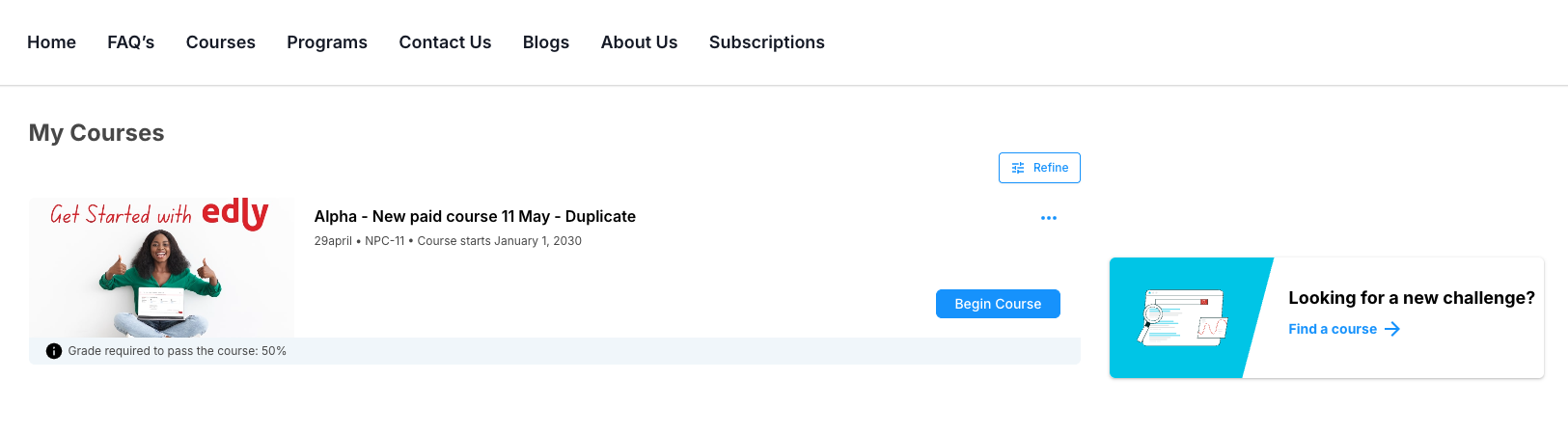
The Dashboard is the first page a learner sees after logging in. It serves as a personal home base. On platforms running the Ulmo release, the Dashboard also displays a Course Home Carousel showing progress cards for your active courses.
-
Enrolled Courses: Displays all courses you are currently taking.
-
Resume Course: Click this button on any course card to return instantly to the last unit you visited.
-
Course Discovery: If you haven't enrolled in a course yet, use the Explore Courses button to visit the Discovery Site catalog.
Course Navigation and Content
Once you enter a course, the Ulmo interface provides a streamlined "Course Player" designed for focus.
1. The Course Outline (Sidebar)
On the left-hand side of the screen, you will find the Course Navigation Sidebar.
-
Sections & Subsections: Click on a section (e.g., Week 1) to expand the subsections.
-
Units: Click on a unit name to load the content in the main viewing area.
2. The Learning Sequence (Top Bar)
In the top center of the page, the breadcrumb navigation displays exactly where you are in the course hierarchy (Section > Subsection > Unit).
-
Unit Icons: Small icons (like a video camera or a pencil) indicate the type of content in each unit.
-
Completion Tracking: As you move through units, a green checkmark appears in the sidebar next to completed units.
3. Moving Between Units
-
Previous and Next: Use the navigation buttons at the bottom of the content area to move linearly through the course.
-
Automatic Completion: To ensure a unit is marked as "Completed," you must interact with the content (e.g., watch the video or submit an answer).
Course Tabs (Top Navigation)
The navigation bar at the top of the course page provides access to secondary course areas:
-
Course: The main learning area described above.
-
Progress: View your current grades for all assignments and see how close you are to earning a certificate.
-
Dates: A timeline view of all upcoming deadlines and release dates.
-
Discussion: The forum where you can ask questions and interact with peers.
-
Wiki/Resources: If enabled, this contains supplementary reading materials and community-edited pages.
Content: Available on platforms running the Ulmo release, this tab replaces the former Videos tab and provides access to all course media and downloadable resources in one place.
Key Navigation Tips
-
Responsive Design: On mobile devices, the sidebar navigation collapses into a "hamburger" menu to maximize your viewing area for videos and text.
-
Search: Use the search bar at the top of the Course tab to find specific keywords within the course content or discussion threads.
Note: Make sure to interact with content on a page to mark it completed. Spend at least 5 seconds on reading and do attempt activities otherwise the page will not be shown as completed.