---
title: How to Manually Enroll Learners in Any Course?
description: "Hint: Make sure you have logged in to your Edly Panel dashboard before proceeding with the article. This guide will cover all the steps on how to add the learner to a private/non-published course."
---
[Skip to content](https://help.edly.io/docs/how-to-manually-enroll-learners-in-any-course-0#main-content)
English
Show submenu for translations
-1.png?width=100&height=75&name=Edly%20by%20Arbisoft%20(Red%20and%20Gray)-1.png)
Open main navigation
Close main navigation
- English
Show submenu for translations
- Visit edly.io
Visit edly.io
Hello. How can we help you?
- There are no suggestions because the search field is empty.
1. [Edly Knowledge Base](https://help.edly.io/docs?hsLang=en)
2. [LMS Administration](https://help.edly.io/docs/lms-administration?hsLang=en)
3. [Instructor Dashboard](https://help.edly.io/docs/lms-administration?hsLang=en#instructor-dashboard)
# How to Manually Enroll Learners in Any Course?
## Enroll Individual or Multiple Learners Using the Instructor Dashboard
Manual enrollment grants a learner immediate access to a course. Use it for invitation-only courses, or to add learners before the course is published on the Discovery Site.
**Hint:** Ensure you have logged into your **Edly Panel** and have instructor-level permissions for the specific course before proceeding.
### Step 1: Access the Course in Studio
1. Log in to the **Edly Panel**.
2. Navigate to **Studio** and select the course you wish to manage.
### Step 2: Navigate to the LMS (Learning Management System)
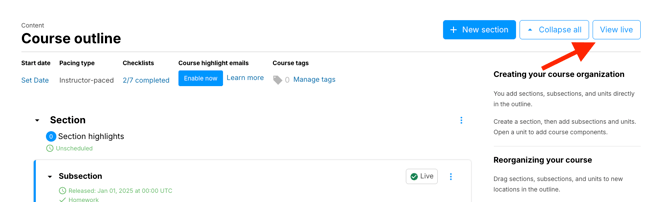
1. Inside your course in Studio, click the **View Live** button located at the top right of the page.
2. This will open the course as it appears to learners in the LMS.
### Step 3: Open the Instructor Dashboard
1. Once in the LMS, click on the **Instructor** tab in the course navigation bar.
2. By default, this opens the **Course Info** page.
### Step 4: Access Enrollment Tools
1. Click on the **Membership** tab within the Instructor Dashboard.
2. Scroll down to the **Batch Enrollment** section.
### Step 5: Enroll the Learner(s)
1. **Enter Details:** In the text box, type or paste the email address or username of the learner. You can add multiple users at once by separating them with a comma or a new line.
2. **Configure Enrollment Settings:**
- **Auto-Enroll:** Select **Yes** to enroll the user immediately. Select **No** if the course requires the learner to complete a separate self-registration step before access is granted.
- **Notify users by email:** Select **Yes** to send them an automated enrollment confirmation email.
3. Click the **Enroll** button.

### Procedures for private courses
If your course is set to **"Invitation Only"** (configured in Studio \> Settings \> Advanced Settings), manual enrollment is the only way for learners to gain access. Following the steps above will bypass the public registration requirement and grant the learner immediate access to the course content.
### Best practices
- **Verify Emails:** Double-check the spelling of email addresses before clicking enroll to ensure learners receive their notifications.
- **Review Enrollment Lists:** You can see a list of currently enrolled users by scrolling further down the Membership page and clicking **"Download a CSV of all registered users."**
- **Mobile support:** The **Instructor Dashboard** is fully responsive. You can complete manual enrollment from a mobile device or tablet. Instructor Dashboard is fully responsive, allowing you to manually enroll learners from a mobile device or tablet if needed.
- [Discovery Site](https://help.edly.io/docs/discovery-site?hsLang=en#main-content)
- [Settings and Tools](https://help.edly.io/docs/discovery-site?hsLang=en#settings-and-tools)
- [Assets Management](https://help.edly.io/docs/discovery-site?hsLang=en#assets-management)
- [Edly Panel](https://help.edly.io/docs/edly-panel?hsLang=en#main-content)
- [Settings and Tools](https://help.edly.io/docs/edly-panel?hsLang=en#settings-and-tools)
- [User Management](https://help.edly.io/docs/edly-panel?hsLang=en#user-management)
- [Panel Insights](https://help.edly.io/docs/edly-panel?hsLang=en#panel-insights)
- [Panel Dashboard](https://help.edly.io/docs/edly-panel?hsLang=en#panel-dashboard)
- [Themes](https://help.edly.io/docs/edly-panel?hsLang=en#themes)
- [Studio](https://help.edly.io/docs/studio?hsLang=en#main-content)
- [Studio Guides](https://help.edly.io/docs/studio?hsLang=en#studio-guides)
- [Creating a Course](https://help.edly.io/docs/studio?hsLang=en#creating-a-course)
- [Exercises and Tools](https://help.edly.io/docs/studio?hsLang=en#exercises-and-tools)
- [Course Components](https://help.edly.io/docs/studio?hsLang=en#course-components)
- [Course Assets](https://help.edly.io/docs/studio?hsLang=en#course-assets)
- [Re-running Your Course](https://help.edly.io/docs/studio?hsLang=en#re-running-your-course)
- [LMS Administration](https://help.edly.io/docs/lms-administration?hsLang=en#main-content)
- [User Management](https://help.edly.io/docs/lms-administration?hsLang=en#user-management)
- [Open edX E-commerce](https://help.edly.io/docs/lms-administration?hsLang=en#open-edx-e-commerce)
- [Instructor Dashboard](https://help.edly.io/docs/lms-administration?hsLang=en#instructor-dashboard)
- [Learner Experience](https://help.edly.io/docs/learner-experience?hsLang=en#main-content)
- [Learning Management System](https://help.edly.io/docs/learner-experience?hsLang=en#learning-management-system)
- [Discovery Site](https://help.edly.io/docs/learner-experience?hsLang=en#discovery-site)
- [Getting Started](https://help.edly.io/docs/getting-started?hsLang=en#main-content)
- [Open edX E-commerce](https://help.edly.io/docs/getting-started?hsLang=en#open-edx-e-commerce)
- [Learning Management System](https://help.edly.io/docs/getting-started?hsLang=en#learning-management-system)
- [Exercises and Tools](https://help.edly.io/docs/getting-started?hsLang=en#exercises-and-tools)
- [Discovery Site](https://help.edly.io/docs/getting-started?hsLang=en#discovery-site)
- [Edly Panel Management](https://help.edly.io/docs/getting-started?hsLang=en#edly-panel-management)
- [General](https://help.edly.io/docs/general?hsLang=en)
[-2.png?width=34&height=24&name=Edly%20by%20Arbisoft%20(Red%20and%20Gray)-2.png "Chill listening crop-3")](http://arbisoft.com)
[mailto:email@email.com](mailto:email@email.com)
Copyright © 2026, Edly Inc.