---
title: How to Enable Students to Upload Assignments/Files?
description: Staff Graded Assignment allows you to assign scores to learners for off-platform activities or participation, at the assessment level. It provides a text component with instructions to learners, and a
---
[Skip to content](https://help.edly.io/docs/how-to-enable-students-to-upload-assignments/files-0#main-content)
English
Show submenu for translations
-1.png?width=100&height=75&name=Edly%20by%20Arbisoft%20(Red%20and%20Gray)-1.png)
Open main navigation
Close main navigation
- English
Show submenu for translations
- Visit edly.io
Visit edly.io
Hello. How can we help you?
- There are no suggestions because the search field is empty.
1. [Edly Knowledge Base](https://help.edly.io/docs?hsLang=en)
2. [Studio](https://help.edly.io/docs/studio?hsLang=en)
3. [Exercises and Tools](https://help.edly.io/docs/studio?hsLang=en#exercises-and-tools)
# How to Enable Students to Upload Assignments/Files?
## How to Enable Learners to Upload Assignment Files in Open edX
### Overview
The **Staff Graded Assignment (SGA)** tool allows course teams to collect file uploads (such as essays, lab reports, or projects) directly from learners within a course unit. Once learners upload their files, instructors can review the submissions, download the documents, and upload scores back into the system using a standardized grading template.
**Tip:** Ensure you are logged into **Open edX Studio** with appropriate Admin or Staff permissions before proceeding.
### Step 1: Enable the Staff Graded Assignment Feature
Before adding an upload field to a unit, you must register the specific advanced key within your course configurations.
**Procedures:**
1. Open your course run in **Studio**.
2. From the **Settings** menu in the top navigation bar, select **Advanced Settings**.
3. Scroll or use the browser search to locate the **Advanced Module List** field.
4. Inside the square brackets `[ ]`, add the key string precisely as: `"edx_sga"`
- *Note: If other advanced keys are present, separate them with a comma (e.g., `["lti_consumer", "edx_sga"]`).*
5. Click **Save Changes** at the bottom of the page.
> 
### Step 2: Create the Staff Graded Assignment Component
Once enabled at the course level, the module populates inside your unit building tools.
**Procedures:**
1. Navigate to your **Course Outline** and open the specific **Unit** where you want to add the assignment file upload.
2. Scroll to the **Add New Component** selection bar at the bottom of the unit workspace.
3. Click the **Advanced** tile.
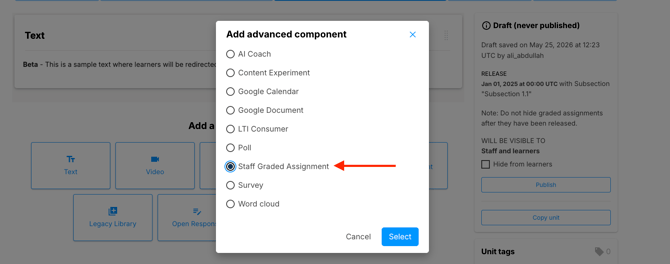
4. Select **Staff Graded Assignment** from the expanded options list. The component block will load immediately onto your page layout.
5. Click **Edit** on the new component block to configure the following basic parameters:
- **Display Name:** Enter a learner-facing title (e.g., *Project Upload: Final Report*).
- **Maximum Score:** Enter the total point value possible for this assignment.
6. Click **Save**.
> 
### Step 3: Grading Learner Submissions
While the course is actively running, you pull submissions and input grades directly from the instructor view inside the LMS.
**Procedures:**
1. Inside Studio, navigate to the unit containing your SGA block and click **View Live Version** to view it inside the LMS player.
2. Locate the Staff Graded Assignment module interface on the live page.
3. **Download Submissions:** You can click the download links next to individual learner profiles to review their uploaded files.
4. **Export Scores:** Click the **Export Scores** button to download a master grading CSV template to your local machine.
- *Note: You can use the track or cohort filter options prior to exporting to limit the data rows to a specific subset of learners.*
5. **Fill Out Grades:** Open the exported CSV file in a spreadsheet editor on your machine. Input the numerical grades into the **"New Points"** column for your learners. Leave rows for learners you are not grading blank.
6. **Import Scores:** Return to the LMS view of the component, click the **Import Scores** button, and upload your updated CSV file.
7. **Review Results:** The system validates the rows and overwrites the scores instantly. A summary status report will display at the bottom of the component panel confirming a successful upload.
### Administrative Performance Parameters
- **File Size Constraints:** The standard file upload mechanism smoothly supports individual student files up to 4MB in size.
- **Handling Large Courses:** For high-volume course runs containing thousands of learners, it is a recommended practice to utilize the built-in track and cohort filters to break down your export and import cycles into smaller, separate CSV files. Ensure you maintain the exact header row styling for every sub-file uploaded.
- [Discovery Site](https://help.edly.io/docs/discovery-site?hsLang=en#main-content)
- [Settings and Tools](https://help.edly.io/docs/discovery-site?hsLang=en#settings-and-tools)
- [Assets Management](https://help.edly.io/docs/discovery-site?hsLang=en#assets-management)
- [Edly Panel](https://help.edly.io/docs/edly-panel?hsLang=en#main-content)
- [Settings and Tools](https://help.edly.io/docs/edly-panel?hsLang=en#settings-and-tools)
- [User Management](https://help.edly.io/docs/edly-panel?hsLang=en#user-management)
- [Panel Insights](https://help.edly.io/docs/edly-panel?hsLang=en#panel-insights)
- [Panel Dashboard](https://help.edly.io/docs/edly-panel?hsLang=en#panel-dashboard)
- [Themes](https://help.edly.io/docs/edly-panel?hsLang=en#themes)
- [Studio](https://help.edly.io/docs/studio?hsLang=en#main-content)
- [Studio Guides](https://help.edly.io/docs/studio?hsLang=en#studio-guides)
- [Creating a Course](https://help.edly.io/docs/studio?hsLang=en#creating-a-course)
- [Exercises and Tools](https://help.edly.io/docs/studio?hsLang=en#exercises-and-tools)
- [Course Components](https://help.edly.io/docs/studio?hsLang=en#course-components)
- [Course Assets](https://help.edly.io/docs/studio?hsLang=en#course-assets)
- [Re-running Your Course](https://help.edly.io/docs/studio?hsLang=en#re-running-your-course)
- [LMS Administration](https://help.edly.io/docs/lms-administration?hsLang=en#main-content)
- [User Management](https://help.edly.io/docs/lms-administration?hsLang=en#user-management)
- [Open edX E-commerce](https://help.edly.io/docs/lms-administration?hsLang=en#open-edx-e-commerce)
- [Instructor Dashboard](https://help.edly.io/docs/lms-administration?hsLang=en#instructor-dashboard)
- [Learner Experience](https://help.edly.io/docs/learner-experience?hsLang=en#main-content)
- [Learning Management System](https://help.edly.io/docs/learner-experience?hsLang=en#learning-management-system)
- [Discovery Site](https://help.edly.io/docs/learner-experience?hsLang=en#discovery-site)
- [Getting Started](https://help.edly.io/docs/getting-started?hsLang=en#main-content)
- [Open edX E-commerce](https://help.edly.io/docs/getting-started?hsLang=en#open-edx-e-commerce)
- [Learning Management System](https://help.edly.io/docs/getting-started?hsLang=en#learning-management-system)
- [Exercises and Tools](https://help.edly.io/docs/getting-started?hsLang=en#exercises-and-tools)
- [Discovery Site](https://help.edly.io/docs/getting-started?hsLang=en#discovery-site)
- [Edly Panel Management](https://help.edly.io/docs/getting-started?hsLang=en#edly-panel-management)
- [General](https://help.edly.io/docs/general?hsLang=en)
[-2.png?width=34&height=24&name=Edly%20by%20Arbisoft%20(Red%20and%20Gray)-2.png "Chill listening crop-3")](http://arbisoft.com)
[mailto:email@email.com](mailto:email@email.com)
Copyright © 2026, Edly Inc.