---
title: How to Direct Links to Units in Open edX Studio?
description: Welcome to this guide on how to create direct links to units in Open edX Studio. Direct links can be incredibly helpful in guiding learners to specific content within your course. In this article, we'
---
[Skip to content](https://help.edly.io/docs/how-to-direct-links-to-units-in-open-edx-studio-0#main-content)
English
Show submenu for translations
-1.png?width=100&height=75&name=Edly%20by%20Arbisoft%20(Red%20and%20Gray)-1.png)
Open main navigation
Close main navigation
- English
Show submenu for translations
- Visit edly.io
Visit edly.io
Hello. How can we help you?
- There are no suggestions because the search field is empty.
1. [Edly Knowledge Base](https://help.edly.io/docs?hsLang=en)
2. [Studio](https://help.edly.io/docs/studio?hsLang=en)
3. [Course Components](https://help.edly.io/docs/studio?hsLang=en#course-components)
# How to Direct Links to Units in Open edX Studio?
## Create Internal Navigation Links Between Course Units in Open edX
### Overview
Direct links allow you to guide learners seamlessly to external websites or to specific content located elsewhere within your course. When linking within a course, using the correct internal referencing format ensures your links remain intact even if you export, import, or re-run the course later.
**Tip:** Ensure you are logged into **Open edX Studio** before starting.
### Method 1: Adding a Link to an External Website
Use this method when you want to link a piece of text to an external source, article, or tool.
**Procedures:**
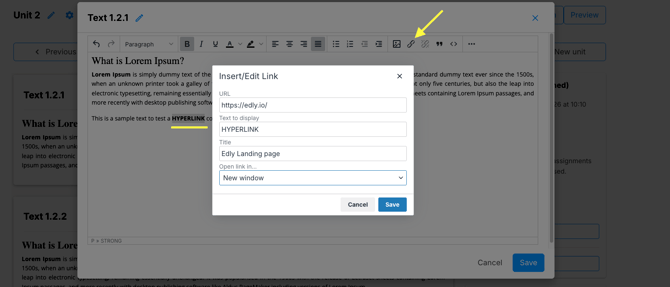
1. Open the unit and edit the **Text Component** where you want to add the link.
2. In the visual editor, highlight the text that will serve as the clickable link.
3. Click the **Link icon** in the editor toolbar.
4. In the **Insert/Edit Link** dialog box, paste the destination web address into the **URL** field.
5. **Target Option:** If you want the link to open in a separate tab so learners do not lose their place in the course, select the dropdown arrow next to **Open Link In...** and choose **New Window**.
6. Click **OK** or **Save**.
7. Click the **Save** button on the Text component.
8. Test the link by using the **Preview** or **View Live Version** buttons at the top right of the unit editor.
### 
### Method 2: Adding a Link to an Internal Course Unit
To cross-reference another unit inside your course, you must use its unique Location ID. This prevents the link from breaking if your course domain changes.
**Procedures:**
#### Step 1: Copy the Unit Location ID
1. Navigate to the **destination unit** (the page you want to send learners to).
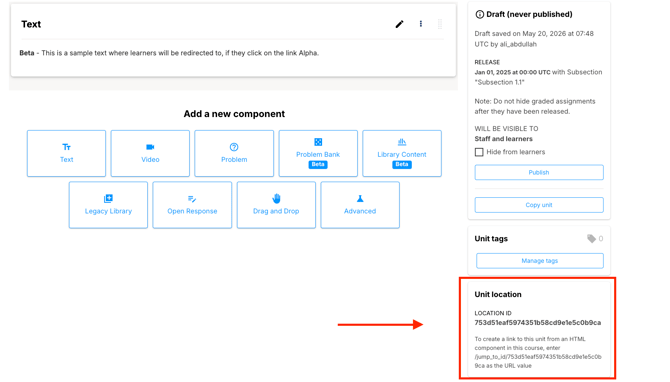
2. Look at the right-hand panel of the unit editor under **Unit location**.
3. Locate the **Location ID** field.
4. Click the copy icon or highlight and copy the alphanumeric identifier string.
#### Step 2: Insert the Jump Link
1. Go back to the unit and open the **Text Component** where the link should live.
2. Highlight the text you want to make clickable.
3. Click the **Link icon** in the editor toolbar.
4. In the **URL** field, input the command following this exact format: `/jump_to_id/LOCATION_ID` *(Replace `LOCATION_ID` with the actual alphanumeric text you copied in Step 1).*
5. **Example:** `/jump_to_id/a1b2c3d4e5f6g7h8i9j0`
6. Click **Insert** or **OK**.
7. Click **Save** on the Text component.
**Caution:** Always use the `/jump_to_id/` format with both forward slashes. Do not paste the raw browser URL from your address bar. If you use the browser URL, the link will break completely if the course is exported, imported, or duplicated as a re-run.
### Important Rules
- **Publishing Requirement:** For an internal link to work correctly for learners in the LMS, the destination unit **must be published**. If it is in draft form, the link will result in an error for non-staff users.
- **Component Deletion:** If you delete a unit or component that is being targeted by a jump link, the link will become broken. You must manually remove or update the link in the source text.
- [Discovery Site](https://help.edly.io/docs/discovery-site?hsLang=en#main-content)
- [Settings and Tools](https://help.edly.io/docs/discovery-site?hsLang=en#settings-and-tools)
- [Assets Management](https://help.edly.io/docs/discovery-site?hsLang=en#assets-management)
- [Edly Panel](https://help.edly.io/docs/edly-panel?hsLang=en#main-content)
- [Settings and Tools](https://help.edly.io/docs/edly-panel?hsLang=en#settings-and-tools)
- [User Management](https://help.edly.io/docs/edly-panel?hsLang=en#user-management)
- [Panel Insights](https://help.edly.io/docs/edly-panel?hsLang=en#panel-insights)
- [Panel Dashboard](https://help.edly.io/docs/edly-panel?hsLang=en#panel-dashboard)
- [Themes](https://help.edly.io/docs/edly-panel?hsLang=en#themes)
- [Studio](https://help.edly.io/docs/studio?hsLang=en#main-content)
- [Studio Guides](https://help.edly.io/docs/studio?hsLang=en#studio-guides)
- [Creating a Course](https://help.edly.io/docs/studio?hsLang=en#creating-a-course)
- [Exercises and Tools](https://help.edly.io/docs/studio?hsLang=en#exercises-and-tools)
- [Course Components](https://help.edly.io/docs/studio?hsLang=en#course-components)
- [Course Assets](https://help.edly.io/docs/studio?hsLang=en#course-assets)
- [Re-running Your Course](https://help.edly.io/docs/studio?hsLang=en#re-running-your-course)
- [LMS Administration](https://help.edly.io/docs/lms-administration?hsLang=en#main-content)
- [User Management](https://help.edly.io/docs/lms-administration?hsLang=en#user-management)
- [Open edX E-commerce](https://help.edly.io/docs/lms-administration?hsLang=en#open-edx-e-commerce)
- [Instructor Dashboard](https://help.edly.io/docs/lms-administration?hsLang=en#instructor-dashboard)
- [Learner Experience](https://help.edly.io/docs/learner-experience?hsLang=en#main-content)
- [Learning Management System](https://help.edly.io/docs/learner-experience?hsLang=en#learning-management-system)
- [Discovery Site](https://help.edly.io/docs/learner-experience?hsLang=en#discovery-site)
- [Getting Started](https://help.edly.io/docs/getting-started?hsLang=en#main-content)
- [Open edX E-commerce](https://help.edly.io/docs/getting-started?hsLang=en#open-edx-e-commerce)
- [Learning Management System](https://help.edly.io/docs/getting-started?hsLang=en#learning-management-system)
- [Exercises and Tools](https://help.edly.io/docs/getting-started?hsLang=en#exercises-and-tools)
- [Discovery Site](https://help.edly.io/docs/getting-started?hsLang=en#discovery-site)
- [Edly Panel Management](https://help.edly.io/docs/getting-started?hsLang=en#edly-panel-management)
- [General](https://help.edly.io/docs/general?hsLang=en)
[-2.png?width=34&height=24&name=Edly%20by%20Arbisoft%20(Red%20and%20Gray)-2.png "Chill listening crop-3")](http://arbisoft.com)
[mailto:email@email.com](mailto:email@email.com)
Copyright © 2026, Edly Inc.