-1.png?width=100&height=75&name=Edly%20by%20Arbisoft%20(Red%20and%20Gray)-1.png)
Overview
Updating your site's global language setting changes the default text strings used throughout your user-facing discovery platform. It automatically translates native, structural components—such as registration form labels, search engine buttons, system alerts, checkout text inputs, and navigation cues—ensuring your platform matches your target audience's localized language dialect.
Tip: Ensure you have logged in to your WordPress Administration Panel (/wp-admin) using an account with Administrator privileges before proceeding.
Step-by-Step Configuration
Procedures:
- Log in to your WordPress dashboard workspace.
- From the top navigation bar, click on the selected language.
- Select the language that you want to set.
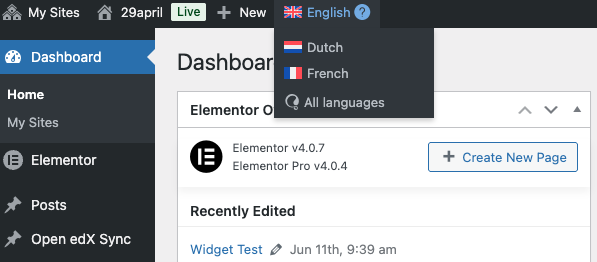
The platform compiler processes the core translation files instantly. The screen will reload, and the structural headings, dashboard administration menus, baseline text descriptors, and learner-facing system text strings will update to use your selected language dialect.
Key Administrative Notes
- Content vs. System Constraints: Changing the global site language alters only the system's native structural strings (buttons, forms, error logs). It will not automatically translate the custom text paragraphs, course description cards, blog articles, or marketing headers you authored by hand. Custom marketing content must still be translated manually inside the block editor canvas rows.