-1.png?width=100&height=75&name=Edly%20by%20Arbisoft%20(Red%20and%20Gray)-1.png)
Overview
The AI Coach is an interactive module that leverages generative AI to help learners improve their written open-response answers. When integrated into a course unit, learners can submit an answer to a prompt, receive immediate tailored feedback from an AI model based on specific context settings, and iterate on their response before formal submission.
Tip: Ensure you are logged into Open edX Studio with appropriate Admin or Staff permissions before proceeding.
Step 1: Add the AI Coach Key to Advanced Settings
To make the AI Coach block available inside your course units, you must first register its platform key within your course configurations.
Procedures:
- Open your course run in Studio.
- From the Settings menu in the top navigation bar, select Advanced Settings.
- Scroll down or search to locate the Advanced Module List field.
- Inside the square brackets
[ ], add the class key string precisely as:"ai_coach"- Note: If other advanced blocks are already listed, separate each key using a comma (e.g.,
["lti_consumer", "ai_coach"]).
- Note: If other advanced blocks are already listed, separate each key using a comma (e.g.,
- Click Save Changes at the bottom of the page.

Step 2: Insert the AI Coach Block into a Unit
Once enabled at the course level, the component will populate under your unit authoring toolsets.
Procedures:
- Navigate to your Course Outline and open or create the specific Unit where you want to embed the activity.
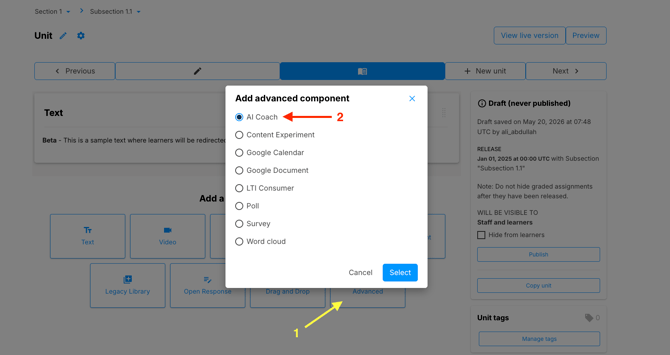
- Scroll to the Add New Component section at the bottom of the unit workspace.
- Click the Advanced tile.
- Select AI Coach from the expanded component options list. The block will immediately load into your unit view.
Step 3: Configure the AI Coach Component
You must customize the prompt, systemic context, and token limits to match your assignment parameters.
Procedures:
- On your newly added AI Coach component block, click the Edit button.
- Configure the following parameter fields in the modal window:
- Display Name: Enter a customer-facing title (e.g., Practice Prompt: Leadership Refinement).
- Question: Input the exact writing prompt or challenge you want the learner to solve.
- Context: This defines the instructions and constraints sent behind the scenes to the AI engine. You must utilize the structural placeholders
andso the engine evaluates variables dynamically.- Example Context: `"I am a grade 8 student studying leadership. My teacher asked me a question: . I answered . Provide two actionable tips to improve my vocabulary and structure as a grade 8 student."*
- AI Model Name: Select your preferred generative AI engine from the system dropdown.
- Feedback Threshold: Enter a maximum number (integer) representing how many times an individual learner is allowed to click "Ask from Coach" to optimize their answers.
- Click Save.
Operational Student Experience in the LMS
Once you Publish the unit, the activity operates seamlessly inside the Learning Management System (LMS) player:
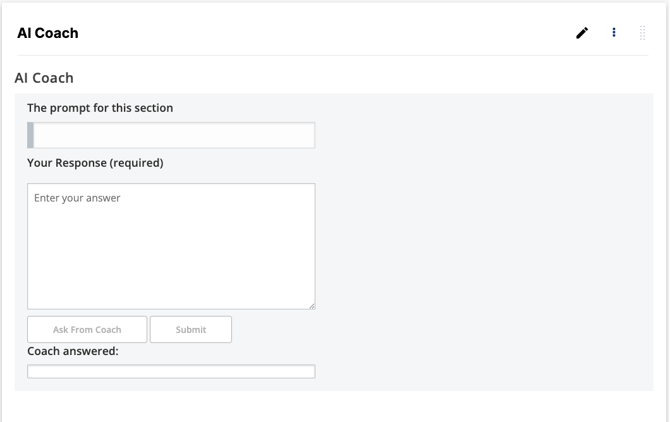
- Evaluating the Prompt: The learner reads your configured question and enters their essay draft into the available text space.
- Consulting the AI: The student clicks the Ask from Coach button. The system processes their draft along with your custom Context rules and returns a structured hint section.
- Token Tracking: Hovering over the request button presents a tooltip showing how many feedback chances remain based on your Feedback Threshold value.
- Finalizing Progress: Once satisfied, the learner clicks Submit. This locks in their ultimate answer choice on the server and marks the corresponding unit component as complete in their outline tracking map.