-1.png?width=100&height=75&name=Edly%20by%20Arbisoft%20(Red%20and%20Gray)-1.png)
How do you archive a course run in Open edX?
To archive a course run in Open edX, set the Course End Date in Studio under Settings > Schedule & Details. Once that UTC timestamp passes, Open edX automatically moves the course to archived status — stopping new enrollments, locking grading, and preserving all learner grade histories in a read-only state. Unlike deleting a course, archiving retains the full course structure and all content components, and enrolled learners retain read-only access to course materials.
Tip: Ensure you are logged into Open edX Studio with appropriate Admin or Staff permissions before proceeding.
Tip: Ensure you are logged into Open edX Studio with appropriate Admin or Staff permissions before proceeding.
Step 1: Triggering the automatic archive status
Because archiving is date-driven, you configure the transition by setting the Course End Date in Studio.
Procedures:
- Open your course run in Studio.
- From the Settings menu in the top navigation bar, select Schedule & Details.
- Locate the Course End Date and Time fields.
- Set the calendar picker to your desired closing date and time (configured in UTC).
- Click Save Changes at the bottom of the page.
Once this specific timestamp passes, the system shifts the course status to archived.
Step 2: Locating archived courses in Studio
Once a course run transitions into an archived state, it moves off your primary active dashboard area to keep your workspace clear.
Procedures:
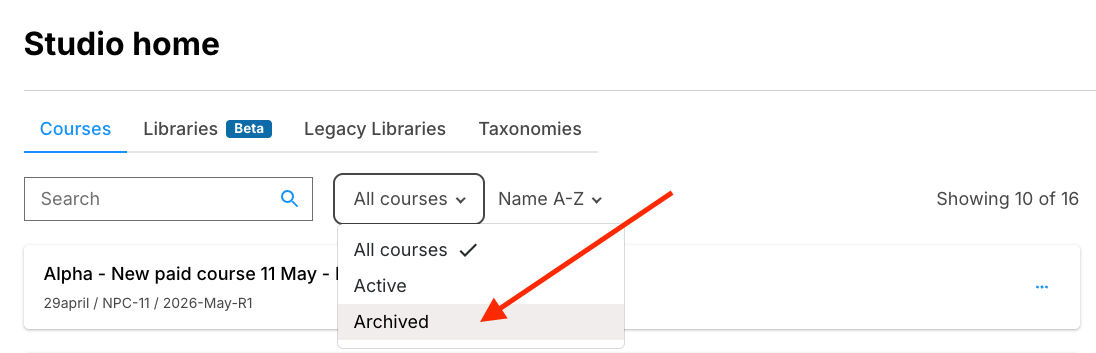
- Log in to the Studio Home dashboard.
- Look at your course listing tabs. Click on the Archived Courses tab located next to your active "Courses" feed.
- Your archived course shell will display here with its historical run data.
Step 3: Manage an archived course (re-running or restoring)
From the Archived Courses tab, you have two options if you need to reuse or modify the content:
Option A: Re-running the course
You can copy the structural contents of the archived course shell into a brand new course run for a future semester.
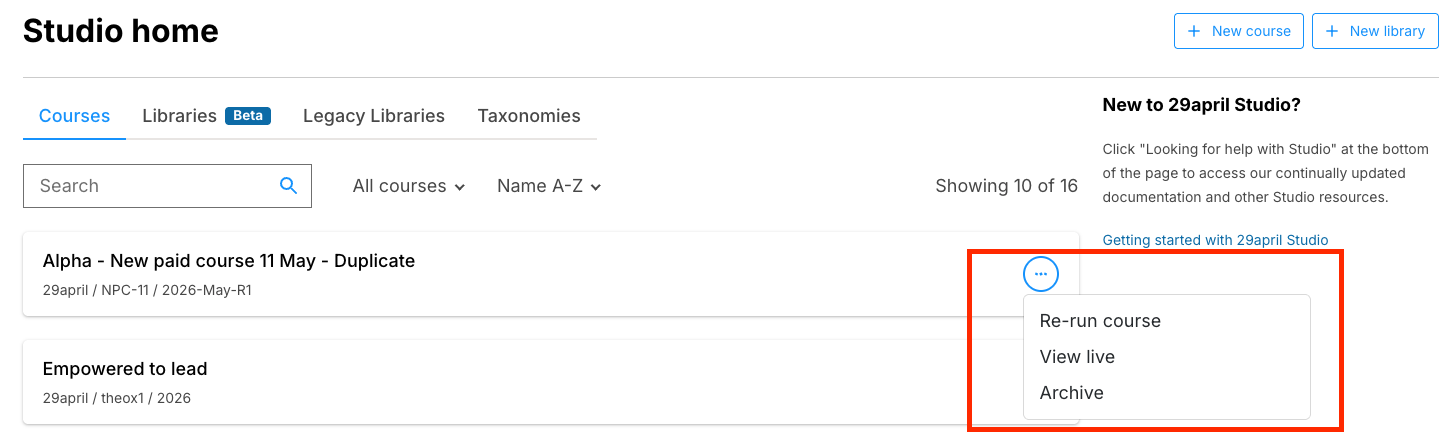
- Locate the course card in the Archived Courses tab.
- Click the Re-run Course button on that row.
- Input your new Organization, Course Number, and a unique Course Run identifier (e.g.,
2026_Q3).- Note: The Course Run identifier must contain no spaces or special characters.
- Click Create.
Option B: Restoring an archived course
Restore a course by updating the Course End Date to a future value. Because archiving is driven entirely by the Course End Date, setting that date to a point in the future returns the course to active status. Use this option if a course was archived prematurely or needs further updates.
- Locate the course card in the Archived Courses tab.
- Click the course title to open the course run in Studio.
- From the Settings menu in the top navigation bar, select Schedule & Details.
- Locate the Course End Date and Time fields and set them to a future date and time (configured in UTC).
- Click Save Changes at the bottom of the page.
- The course returns to the Courses tab, restoring full authoring access.
Operational Student Experience in the LMS
When a course enters an archived state:
- Learner Dashboard: The course moves to the "Past" or "Archived" section of the student's personal landing dashboard.
- Content Access: Enrolled learners can still access the course blocks in a read-only state to review videos or reading materials.
- Grading & Submissions: All grading mechanisms lock completely. Learners cannot submit any more answers for credit, and certificates cannot be earned after archiving unless an instructor manually adjusts the individual learner's enrollment or grading access in the LMS.